---
title: Find the current firmware version for your Gateway
description: If you are unsure what version of firmware is installed on an active Gateway, you can find it using Report app
---
[Skip to content](https://support.aofrio.com/find-the-current-firmware-version-for-your-gateway#main-content)
- [English](https://support.aofrio.com/find-the-current-firmware-version-for-your-gateway)
- [Español - México](https://support.aofrio.com/es-mx/find-the-current-firmware-version-for-your-gateway)
- [Português - Brasil](https://support.aofrio.com/pt-br/find-the-current-firmware-version-for-your-gateway)
English
Show submenu for translations

Open main navigation
Close main navigation
- - [English](https://support.aofrio.com/find-the-current-firmware-version-for-your-gateway)
- [Español - México](https://support.aofrio.com/es-mx/find-the-current-firmware-version-for-your-gateway)
- [Português - Brasil](https://support.aofrio.com/pt-br/find-the-current-firmware-version-for-your-gateway)
English
Show submenu for translations
- Contact us
Contact us
How can we help you?
- There are no suggestions because the search field is empty.
1. [Help Center](https://support.aofrio.com/?hsLang=en)
2. [Software & Firmware releases](https://support.aofrio.com/software-firmware-releases?hsLang=en)
3. [Firmware for IoT hardware](https://support.aofrio.com/software-firmware-releases?hsLang=en#firmware-for-iot-hardware)
January 6, 2026
# Find the current firmware version for your Gateway
## If you are unsure what version of firmware is installed on an active Gateway, you can find it using Report app.
### Before you start
You can check the firmware of an activated Gateway even if it hasn’t been paired with another device or installed in a cooler. However, it does need to be added to your database and have the SIM card activated to be found in Report app.
### Confirm the current firmware version of a Gateway
NOTE: Gateway and Network Pro devices are currently listed under the “Connect Network Pro” section in Report app.
1. Open Report app.
2. From the main left-hand menu, select **System**, then click **Connect Network Pro**. The dashboard automatically shows a selection of active Gateway and Network Pro devices based on date.
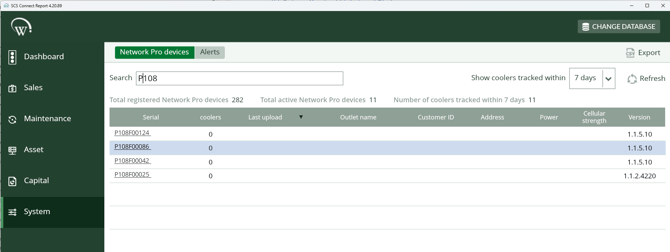
3. To update the date range, click on the **Show coolers tracked within X days** filter and choose a date range from the dropdown. This filter can be very useful if you want to see equipment that has recently been installed or moved location.
4. Check the status of the listed Gateway firmware in the **VERSION** column. In the image above, the firmware version for P108F00083 is 1.1.510.
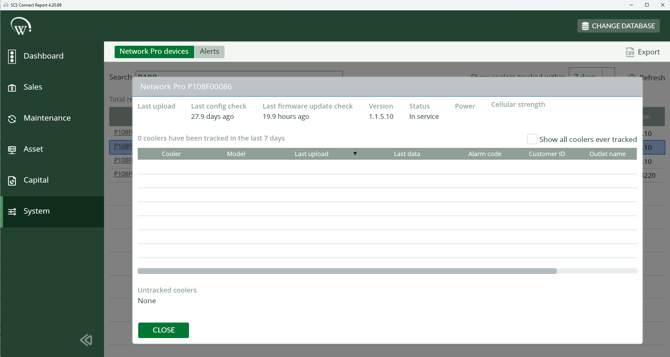
5. (Optional) To check when the firmware was last updated, click on the **Serial number** and view more details for the Gateway including the **Last firmware update check**.
See also: [Update Gateway firmware](https://support.aofrio.com/update-gateway-firmware?hsLang=en)
- [Support for your role](https://support.aofrio.com/support-for-your-role?hsLang=en#main-content)
- [Service technician](https://support.aofrio.com/support-for-your-role?hsLang=en#service-technician)
- [Hardware installer](https://support.aofrio.com/support-for-your-role?hsLang=en#hardware-installer)
- [OEM buyer or engineer](https://support.aofrio.com/support-for-your-role?hsLang=en#oem-buyer-or-engineer)
- [Fleet manager](https://support.aofrio.com/support-for-your-role?hsLang=en#fleet-manager)
- [Food Safety manager](https://support.aofrio.com/support-for-your-role?hsLang=en#food-safety-manager)
- [Your AoFrio account](https://support.aofrio.com/support-for-your-role?hsLang=en#your-aofrio-account)
- [Frequently Asked Questions (FAQ)](https://support.aofrio.com/support-for-your-role?hsLang=en#frequently-asked-questions-faq)
- [Identify & recover lost assets](https://support.aofrio.com/identify-recover-lost-assets?hsLang=en#main-content)
- [Asset protection](https://support.aofrio.com/identify-recover-lost-assets?hsLang=en#asset-protection)
- [Asset identification & tracking](https://support.aofrio.com/identify-recover-lost-assets?hsLang=en#asset-identification-tracking)
- [Software & Firmware releases](https://support.aofrio.com/software-firmware-releases?hsLang=en#main-content)
- [Release notifications](https://support.aofrio.com/software-firmware-releases?hsLang=en#release-notifications)
- [Firmware for IoT hardware](https://support.aofrio.com/software-firmware-releases?hsLang=en#firmware-for-iot-hardware)
- [About our software & platform](https://support.aofrio.com/about-our-software-platform?hsLang=en#main-content)
- [General](https://support.aofrio.com/about-our-software-platform?hsLang=en#general)
- [iQ platform](https://support.aofrio.com/about-our-software-platform?hsLang=en#iq-platform)
- [Field app](https://support.aofrio.com/about-our-software-platform?hsLang=en#field-app)
- [Track app](https://support.aofrio.com/about-our-software-platform?hsLang=en#track-app)
- [Food Retail](https://support.aofrio.com/about-our-software-platform?hsLang=en#food-retail)
- [User Manager](https://support.aofrio.com/about-our-software-platform?hsLang=en#user-manager)
- [Report app](https://support.aofrio.com/about-our-software-platform?hsLang=en#report-app)
- [Lab app](https://support.aofrio.com/about-our-software-platform?hsLang=en#lab-app)
- [OEM Dashboard](https://support.aofrio.com/about-our-software-platform?hsLang=en#oem-dashboard)
- [Cradle app](https://support.aofrio.com/about-our-software-platform?hsLang=en#cradle-app)
- [Universal Programmer app](https://support.aofrio.com/about-our-software-platform?hsLang=en#universal-programmer-app)
- [IoT hardware](https://support.aofrio.com/iot-hardware?hsLang=en#main-content)
- [IoT ecosystem](https://support.aofrio.com/iot-hardware?hsLang=en#iot-ecosystem)
- [Gateway - LTE Cat M1 & LTE Cat 1 BIS](https://support.aofrio.com/iot-hardware?hsLang=en#gateway-lte-cat-m1-lte-cat-1-bis)
- [SCS Controller - General information](https://support.aofrio.com/iot-hardware?hsLang=en#scs-controller-general-information)
- [SCS 800 Controller](https://support.aofrio.com/iot-hardware?hsLang=en#scs-800-controller)
- [SCS 500 & 600 Controller](https://support.aofrio.com/iot-hardware?hsLang=en#scs-500-600-controller)
- [Monitor](https://support.aofrio.com/iot-hardware?hsLang=en#monitor)
- [Network Pro](https://support.aofrio.com/iot-hardware?hsLang=en#network-pro)
- [Compact LoRaWAN Temperature Sensor](https://support.aofrio.com/iot-hardware?hsLang=en#compact-lorawan-temperature-sensor)
- [LoRaWAN Gateway](https://support.aofrio.com/iot-hardware?hsLang=en#lorawan-gateway)
- [Mounting & commissioning hardware](https://support.aofrio.com/mounting-commissioning-hardware?hsLang=en#main-content)
- [General](https://support.aofrio.com/mounting-commissioning-hardware?hsLang=en#general)
- [Gateway](https://support.aofrio.com/mounting-commissioning-hardware?hsLang=en#gateway)
- [SCS Controller](https://support.aofrio.com/mounting-commissioning-hardware?hsLang=en#scs-controller)
- [Motors & fans](https://support.aofrio.com/mounting-commissioning-hardware?hsLang=en#motors-fans)
- [Temperature sensors](https://support.aofrio.com/mounting-commissioning-hardware?hsLang=en#temperature-sensors)
- [Network Pro](https://support.aofrio.com/mounting-commissioning-hardware?hsLang=en#network-pro)
- [IoT hardware operation & behavior](https://support.aofrio.com/iot-hardware-operation-behavior?hsLang=en#main-content)
- [Cellular & Bluetooth connectivity](https://support.aofrio.com/iot-hardware-operation-behavior?hsLang=en#cellular-bluetooth-connectivity)
- [Optimize cooler performance & energy use](https://support.aofrio.com/iot-hardware-operation-behavior?hsLang=en#optimize-cooler-performance-energy-use)
- [SCS Controller](https://support.aofrio.com/iot-hardware-operation-behavior?hsLang=en#scs-controller)
- [SCS Controller - Parameters](https://support.aofrio.com/iot-hardware-operation-behavior?hsLang=en#scs-controller-parameters)
- [SCS Controller - Faults & Alarms](https://support.aofrio.com/iot-hardware-operation-behavior?hsLang=en#scs-controller-faults-alarms)
- [Monitor](https://support.aofrio.com/iot-hardware-operation-behavior?hsLang=en#monitor)
- [Gateway](https://support.aofrio.com/iot-hardware-operation-behavior?hsLang=en#gateway)
- [Network Pro](https://support.aofrio.com/iot-hardware-operation-behavior?hsLang=en#network-pro)
- [Motors & fans](https://support.aofrio.com/motors-fans?hsLang=en#main-content)
- [General](https://support.aofrio.com/motors-fans?hsLang=en#general)
- [ECR 2 26W motor](https://support.aofrio.com/motors-fans?hsLang=en#ecr-2-26w-motor)
- [ECR 2 13W motor](https://support.aofrio.com/motors-fans?hsLang=en#ecr-2-13w-motor)
- [ECR 1 motor](https://support.aofrio.com/motors-fans?hsLang=en#ecr-1-motor)
- [ECR 82/92 motor](https://support.aofrio.com/motors-fans?hsLang=en#ecr-82-92-motor)
- [Fan packs - 13W applications](https://support.aofrio.com/motors-fans?hsLang=en#fan-packs-13w-applications)
- [Fan packs - 26W applications](https://support.aofrio.com/motors-fans?hsLang=en#fan-packs-26w-applications)
- [Other fans](https://support.aofrio.com/motors-fans?hsLang=en#other-fans)
- [Manuals & datasheets](https://support.aofrio.com/manuals-datasheets?hsLang=en#main-content)
- [IoT hardware](https://support.aofrio.com/manuals-datasheets?hsLang=en#iot-hardware)
- [Motors and fans](https://support.aofrio.com/manuals-datasheets?hsLang=en#motors-and-fans)
- [Software](https://support.aofrio.com/manuals-datasheets?hsLang=en#software)
- [Special access resources](https://support.aofrio.com/special-access-resources?hsLang=en#main-content)
- [General](https://support.aofrio.com/special-access-resources?hsLang=en#general)
[](https://aofrio.com/)
78 Apollo Drive, Rosedale, Auckland 0632
New Zealand
Copyright © 2025, AoFrio Limited