
NOTE: All SCS 500/600 Controllers ship from the factory with FW 4030.1 by default. Later firmware versions can be made available on request.
Update process
Firmware can be updated from either the mobile or desktop app. The steps are the same for both.
|
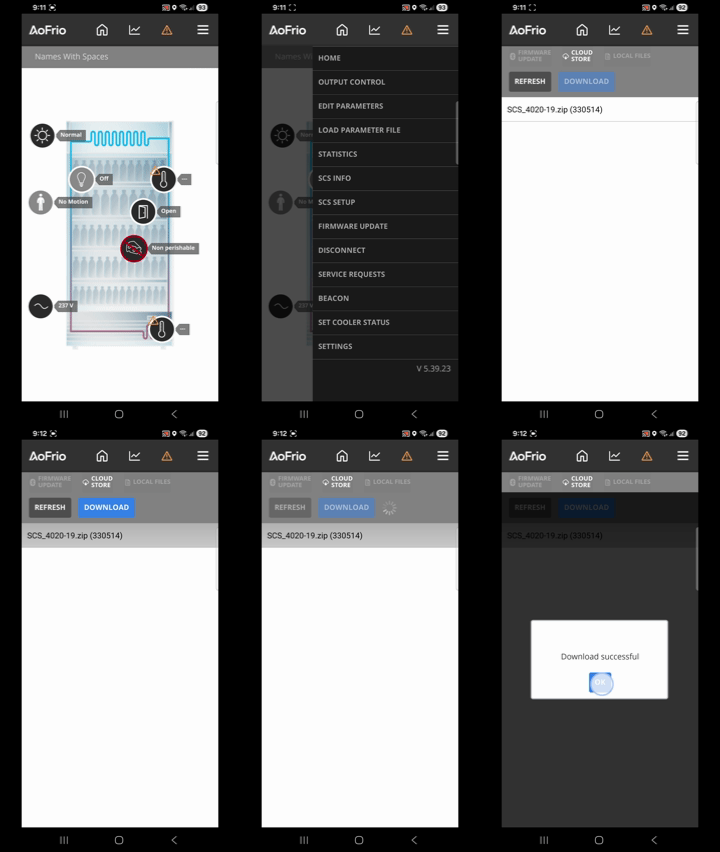
1. Disconnect the cooler from the power source then open the Field app on your phone or desktop. 2. Open the menu in the top right-hand corner and select FIRMWARE UPDATE. 3. Select the CLOUD STORE option to access the firmware files. 4. Under FILE LIST, choose the firmware version you want to update (eg. 1593_9 bin(74176)) and then click DOWNLOAD. 5. Wait for the app to confirm the download is complete, then click OK. 6. Select LOCAL FILES to confirm the file you have downloaded is there. 7. If not already connected to the cooler, open Field app and connect the cooler. NOTE: The Bluetooth indicator on the face of the SCS Controller will flash once it is successfully connected to Field app on your mobile device. |
🎬Steps 1 to 5
|
|
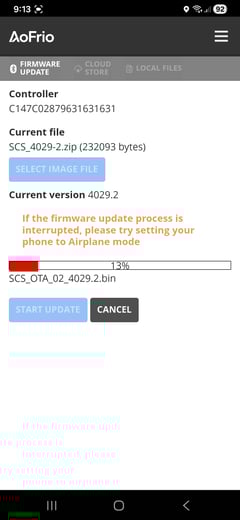
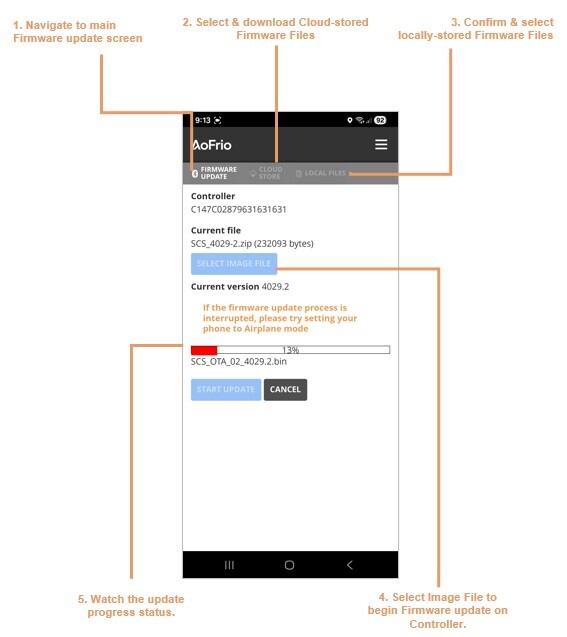
8. If there is more than one SCS controller model visible, tap the one you want to update from the list, then press SELECT IMAGE FILE. 9.Wait to see the firmware then click START UPDATE to start overwriting (or reflashing) the previous firmware version. 10. Wait until the reflashing status reaches 100%. You should see a message "Firmware Update Complete” then click OK. The firmware should now be successfully installed on the SCS controller. You can also confirm by checking the current firmware version for your SCS Controller For more information download a 3-page reference PDF about the Firmware update process. |
|
Troubleshooting
| Issue | Solution |
|
In step 7, it fails to connect when I select the cooler. |
|
|
In step 7, when I select the device, it reboots the SCS Controller but then fails to connect |
|
|
In step 9, before I can press START UPDATE, the connection to the device is dropped. |
|
|
In step 9 and 10, the connection to the device is dropped before the update is complete |
|
|
In step 9 and 10, it disconnects before FW update is complete, but I cannot see SCS_OTA when I press START SCAN |
|