
NOTE: Firmware updates should be performed only when required, but using the latest available version is recommended to ensure optimal controller performance and new features.
Before you begin
- Ensure your user role has permission to download firmware files from the AoFrio Cloud.
- Confirm the required firmware version has been released to your database in the AoFrio Cloud by your organization’s administrator.
- Download and install the latest version of the Cradle Programmer app to your PC.
- Connect the SCS Controller to your PC using the supplied cradle (SCS 500/600 models) or cradle cable (SCS 800)
| SCS 500/600 Cradle | SCS 800 Cradle Cable |
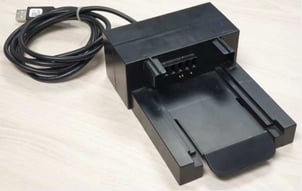
|
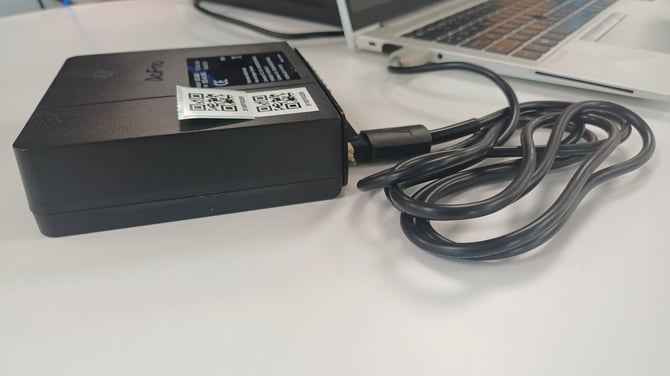
|
Update Firmware
|
STEP 1: |
After the download is complete, you should see a confirmation message confirming the download has been successful. |
| STEP 2: Verify the firmware file download |
Check that the downloaded firmware files now appear under either the:
These files populate the firmware dropdown list available when creating:
TIP: Keep only the necessary firmware files in your local storage to reduce confusion and prevent selection mistakes during programming.
|
| (Optional) STEP 3: Define the “Latest Firmware” |
You can define which downloaded firmware version should be used when selecting Latest Firmware during programming. To do this:
This assigns that version to the “Latest Firmware” option used during controller programming. |
You are now ready to move into the Configuration phase where the firmware file you have downloaded will be imported into the connected SCS 800 Controller. For more detail see the Cradle Programmer app manual.