
How it works
| Software version | Details |
| v5.36 or later |
Instant disable
Delayed disable
Other disable notes
|
| v5.35 or earlier |
|
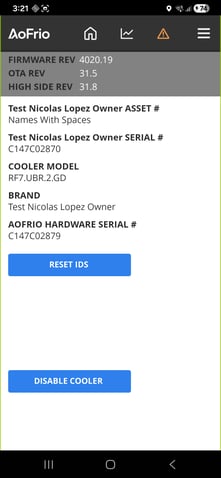
Disable a cooler
|
1. Log on to Field app and connect to the cooler you want to disable. 2. On the SCS info screen for the cooler you are connected to tap DISABLE COOLER. |
||
|
3. Depending on the software version:
|
 |
|
In Report app (from v4.20 onwards) the Audit List page can be used to see all coolers in a disabled state.
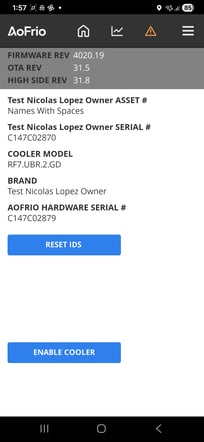
Reactivate a cooler
Before starting: Ask your AoFrio administrator to update your permissions in User Manager to see this function.
|
1. Log on to Field app and connect to the disabled cooler you want to reactivate. 2. On the SCS info screen for the cooler you are connected to, tap ENABLE COOLER. 3. Tap OK to confirm that you want to enable the cooler, then tap OK again. The SCS Controller will clear the Terminal Alarm and restart the compressor to re-enable the cooler. Anyone who now connects to it will see the cooler listed as available. |
|
The Single Cooler page in Report app can be used to see the transition of cooler states.